2015-08-21
 352
352

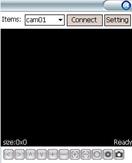 Mobile client supports windows system version above 2003. It only supports screen touch version currently.
1. Copy the MEYE_WM.cab to the mobile and install it.
Click the corresponding program icon to open as shown in the picture on the right.
| Function Button | Name | Function Description |

| Connect and Play | Program connects the device and start to play the video |

| Setting | Set IP address of the NVR or DDNS, port, user name, password and device name. |

| Disconnect | Program disconnects the video |

| Select Channel | Select to play the video of any channel of the device |

| PTZ Control | Control PTZ up, down, left and right |

| Zoom | Zoom in and zoom out |

| Focal Length | Increase or decrease the focal length |

| Iris | Increase or decrease the iris |

| Snapshot | Capture the current image (the pictures are saved in the picture directory of the mobile phone by default) |
 The functions of the buttons are as below:
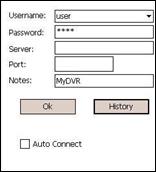
2. Use for the first time or need to modify the parameters, please click  button to enter the parameter setting interface, as shown in the below picture:
Username: The same as the user name on IE;
Password: The same as the password on IE.
Server: The public IP address or DDNS of the NVR;
Port: The server port of the NVR;
Notes: The description of the NVR, which is used to differentiate different devices;
3. After successful setting, press [OK] button to enter the connection interface. The image will appear if connected successfully.